


IncrediMail mail to Outlook Transfer
 Article describes how to transfer IncrediMail mail to Outlook with help of IncrediMail to Outlook Converter if the IncrediMail and MS Outlook are installed at your system. A lot of IncrediMail users faced with the problem that it is not allowed to export data from IncrediMail client. It is possible to save only one email but it is not working for all emails inside IncrediMail. So you need to use the special tool like IncrediMail to Outlook Converter to transfer emails from .IMM files into Outlook.
Even you have no MS Outlook installed you may extract emails from IncrediMail .IMM files and save them to multiple files of .EML format. Those .EML files can be easily imported to Outlook Express, ThunderBird, The Bat or any other supported email client.
How to Import IncrediMail to Outlook? It is easy as 1-2-3.
- Download IncrediMail to Outlook tool.
- Install it to the computer where IncrediMail sores emails.
- Run the Best IncredImail to Outlook Converter utility.
* – the IMM to PST converter will find all IMM files if the IncrediMail is installed and select all of them. - If there is no IncrediMail installed at your computer, you have to select the Message Store (directory where .IMM files are stored) manually. Additionally please select the directory with IncrediMail attachments.
- The program selects all found .IMM files but you may change the selection in IMM files list.
- Press the Import button to start the IncrediMail to Outlook import.
IncrediMail to Outlook Converter will start transfer. You will see the process log of the IMM to Outlook importing.
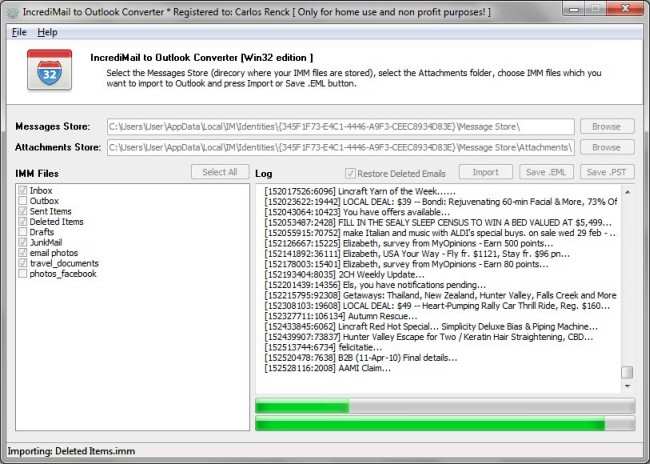


After the end of operation you may open the Outlook and organize your imported emails in case if that is required.
How to export IncrediMail emails from .IMM file?
Another option which is coming with our Best IncrediMail to Outlook Converter is IncrediMail emails extraction. The special button “Save .EML” allows to extract emails from IncrediMail files of .IMM format and save them to multiple inividual files of .EML format. Email files can be imported then to the wide range of email clients such as Outlook Express, The Bat!, Thunderbird, Apple Mail, Windows Mail, Live Mail and others.
To extract emails from IncrdiMail storages you may do the following:
- Run IncrediMail to Outlook Converter tool.
- Select the source directory (Messages Store) where your .IMM files are stored.
* – If you have the IncrediMail installed, the .IMM Converter will find and select the storage automatically. - Specify the directory where IncrediMail stores attachments (Attachments Store).
- Select .IMM files which should be processed (extracted).
- Press Save .EML button.
- IncrediMail to Outlook Converter will prompt to select the output directory where it should save extracted emails.
- Choose the empty folder to save .EML files and press OK button.
IncrediMail to Outlook Converter will start the emails extraction. The program creates the subfolder corresponding to each .IMM file name and extracted IncrediMail emails will be saved inside it.
Dear software authors,
I would like to thank you for this really working software! I tried several programs commercial and free but only your converter completed the mail migration from IncrediMail 2.0 to MS Outlook 2010 without any problem. Thank you! Keep up a good work!
Andrew.
Thanks for the detailed instructions, the video made it easy to understand and learn how to use the transfer portion of the program.
Without this information I would have been lost, a great guide and excellent software for anyone who needs to transfer incredimail to outlook.
Parabéns pelo ótimo Software que vocês disponibilizaram, funciona perfeitamente.
Grato, Caio Ferragut.